Mp3 and Mp4 supported.

Ytmp3 YouTube to MP3 Converter

Ytmp3 provides a simple way to turn supported YouTube videos into portable MP3 files. Paste an eligible YouTube URL, allow Ytmp3 to process the video and separate the audio, and then download the finished file to your device. Only use it with videos you made, public-domain works, or content you are authorized to download.

How Ytmp3 Works and When You Should Use It

Ytmp3 is a web-based converter designed for one specific task. When you submit a valid YouTube video URL, it reviews the available media and, if the source is compatible, creates an MP3 from its audio. Since everything runs through a browser, most people can use it without installing desktop software or learning advanced audio-editing techniques.

People searching for a YouTube to MP3 converter or YouTube MP3 Downloader may want an audio-only copy for offline listening, lower storage requirements, or playback in their chosen media app. Ytmp3 presents the process in a small number of clear steps. However, it cannot improve the source recording or restore audio details that were not included in the first place. The result is determined by the media provided by YouTube and the quality of the original upload.

Only download through Ytmp3 when you have the necessary permission. The fact that a video is publicly viewable does not automatically grant the right to copy its audio. Before starting a conversion, confirm that you own the content, have approval from the rights holder, or may save it under a relevant license or public-domain designation.

How to Download Authorized Audio with Ytmp3

The process is deliberately short, but choosing the correct URL helps prevent common errors. Open the exact YouTube video you are permitted to use, then copy its full address from your browser's address bar or YouTube's share options. A direct video URL is usually more reliable than copied page text, a search-page link, or an incomplete video identifier.

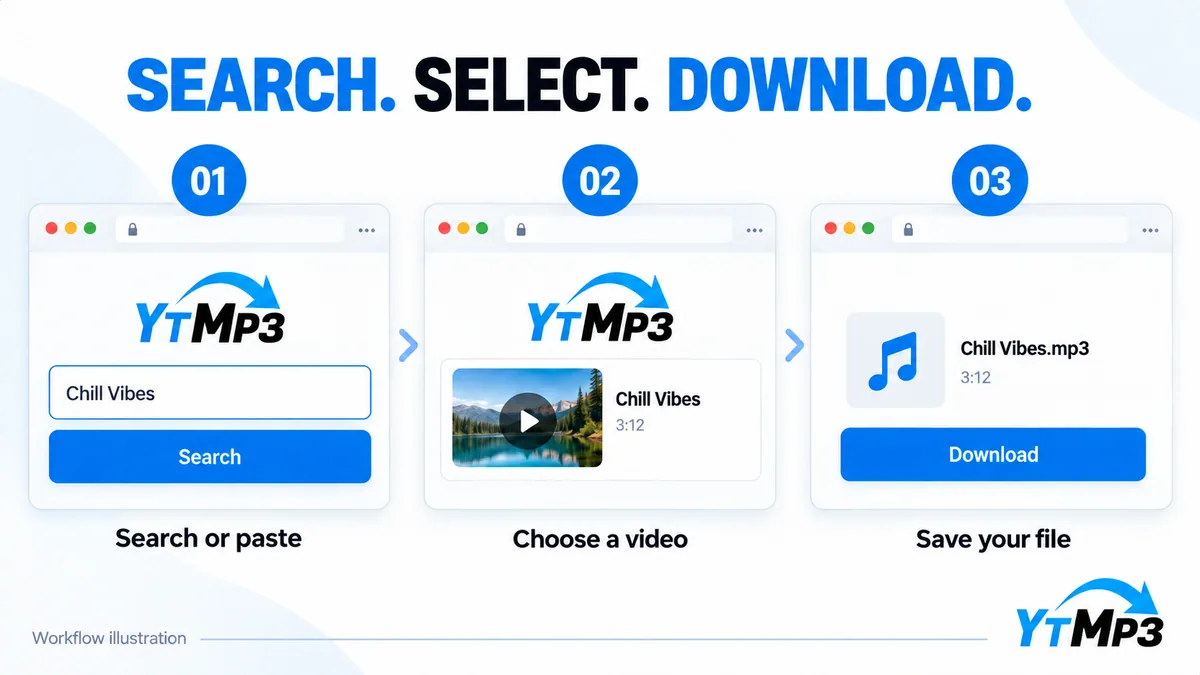
Return to Ytmp3, paste the address into the provided field, and begin converting. Keep the tab open while the service validates the URL. After processing finishes, confirm that the displayed title belongs to the video you selected, and click the download button once. If you have not chosen another destination, the browser will usually save the MP3 in its Downloads folder.

  1. Choose content you are authorized to downloadUse a video you created, a public-domain work, correctly licensed material, or media whose owner has expressly allowed you to save it.
  2. Copy the full direct address of the videoObtain the complete URL for a single supported YouTube video, preferably without shortening, editing, or reconstructing it by hand.
  3. Paste and send the YouTube linkInsert the address into the Ytmp3 URL field, clear away any accidental spaces, and submit it for processing.
  4. Wait for the active job to completeLong videos and busy networks may extend processing time, so do not create repeated requests while the current conversion is still running.
  5. Save and inspect the resulting MP3Download the file, open it in a trusted media app, and verify its filename, duration, and playback before organizing it.

Why Users May Choose Ytmp3

Many users select Ytmp3 because the conversion process is easy to understand. The interface focuses on a clear URL field, a familiar conversion button, and an audio format compatible with a wide range of devices. Authorized audio from personal lessons, rehearsals, interviews, voice recordings, and similar videos can be saved without navigating professional production tools.

Ytmp3 may also be useful when storage capacity and device compatibility matter. Removing the visual track means an MP3 will generally occupy less space than the complete video. MP3 audio works with many phones, computers, vehicle systems, smart speakers, and dedicated music players. Because the service runs in a browser, the steps remain broadly consistent across devices and no standalone converter needs to be installed.

Like any basic conversion service, Ytmp3 is limited by source availability. Private, region-blocked, age-restricted, deleted, live, or otherwise protected videos may be inaccessible. Browser settings and unreliable internet connections can also cause a request to fail. Ytmp3 processes eligible public sources, but it does not bypass controls applied by YouTube or the relevant copyright holder.

Practical Features of the Ytmp3 Audio Converter

A useful converter should keep unnecessary decisions to a minimum and make each stage easy to follow. Ytmp3 focuses on creating an audio file from a compatible video URL. Its responsive layout can be used with keyboards or touchscreens, while light and dark display options may make the page easier to read in different surroundings.

These essential capabilities support routine conversions without making exaggerated promises. Simple URL validation, visible progress information, clearly available finished downloads, and readable error notices help people understand what is happening throughout each request.

Compatible Devices, Browsers, Formats, and Download Folders

Ytmp3 supports current versions of Chrome, Safari, Firefox, Edge, and similar browsers that allow normal JavaScript operation and file downloading. It can be used on device types such as Android phones and tablets, iPhones, iPads, Windows PCs, Macs, Chromebooks, Linux computers, and many other tablets. Older browser versions, blocked scripts, strict filtering extensions, or managed networks may disrupt the form or keep a download from completing.

MP3 is the primary output format because it combines widespread device compatibility with practical file sizes. Windows and Android devices commonly place completed files in a Downloads folder. Safari on an iPhone or iPad will generally save them under Downloads in the Files app, while macOS typically uses the Downloads folder shown in Finder. Browser settings can change these locations, so review the browser's download list if you cannot find a file.

An MP3 contains audio rather than video, so images, captions, comments, and other visual source elements will normally be omitted. Metadata may be limited, and some devices can alter particular characters in a title. Before editing filenames or tags, make sure the file plays properly and confirm that you have the right to keep it.

The Impact of Bitrate, Original Quality, and Technical Constraints

Bitrate measures how much data compressed audio uses per second. Increasing it can preserve more detail, but doing so also produces a larger file. No bitrate setting can recreate information missing from the initial upload or removed during YouTube's own processing. Encoding a medium-quality source at an exceptionally high MP3 bitrate may consume extra storage without delivering an audible improvement.

Mid-range bitrate settings are often adequate for lectures, voice notes, and similar speech-centered recordings. Detailed music can benefit from a higher option when the source contains enough quality to support it. An appropriate choice depends on available storage, recording duration, listening hardware, and how the file will be used. Instead of always selecting the maximum, test a short portion with the device you normally use for playback.

Conversion within a browser comes with unavoidable technical limits. Longer videos require additional processing time and generate larger files. An inconsistent connection may interrupt downloading, while deleted or restricted sources can remain inaccessible. Ytmp3 takes the audio available from a supported source; it is not a professional mastering service and does not promise studio-quality results.

Tips for More Reliable Ytmp3 Results

Several simple habits can make converting and organizing files easier. Connect through a dependable network, submit the video's standard direct address, and process only one request at a time. Before saving anything, check that the displayed title and runtime correspond to the intended source so you do not download the wrong video with a similar name.

After the file has downloaded, play the beginning and another point later in the recording. This can reveal a truncated file or incomplete transfer before the source information is discarded. Give permitted files consistent names, such as ones containing the creator, work title, and year, then store them in folders that can be backed up easily. Also confirm that the device has enough free space for both the MP3 and any temporary browser data.

Troubleshooting Common Ytmp3 Problems

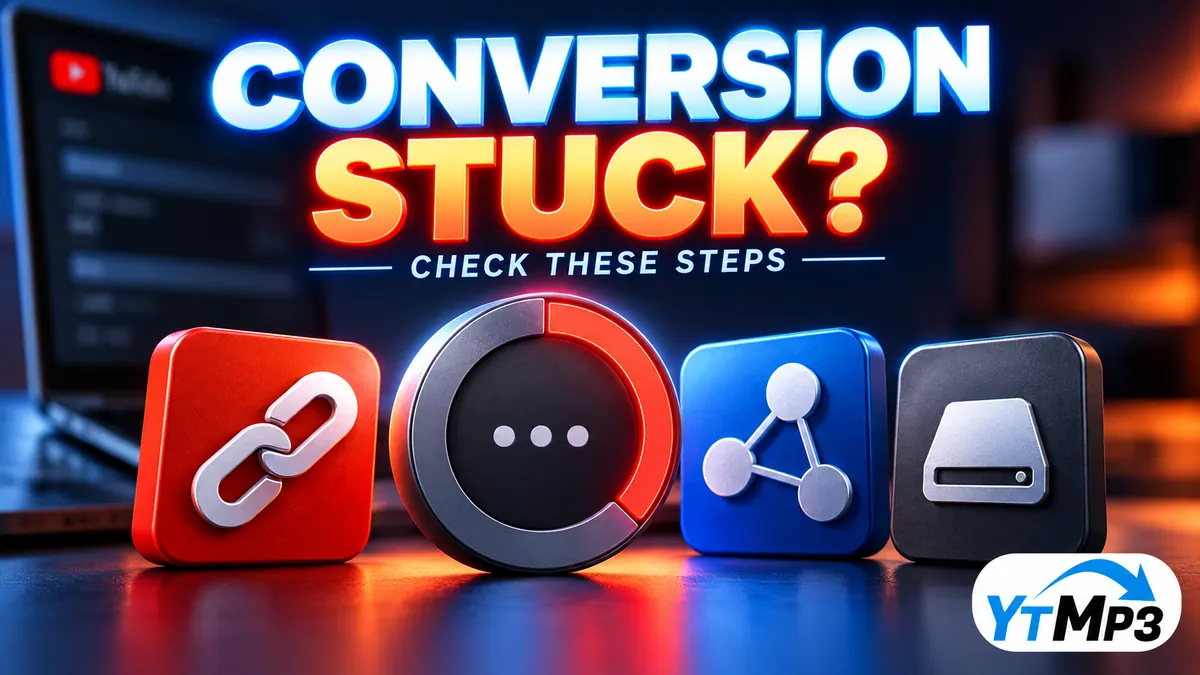
If Ytmp3 reports that a URL is invalid, reopen the video's page and copy the full address again. Remove extra spaces, punctuation added by a messaging app, and unneeded tracking parameters. Confirm that the link opens one playable video in the same browser. Even when a page is visible, conversion may be unavailable if the video is private, region-restricted, subject to other protections, scheduled for later publication, currently live, or no longer available.

Allow a conversion that appears slow enough time to finish before trying another submission. Processing duration can vary with the video's length, congestion at the source, temporary demand on the service, and connection stability. Repeatedly reloading the page may erase information about the active task. If the downloaded MP3 will not play, check whether its file size seems appropriate for the expected duration, try a modern trusted player, and confirm that sufficient storage remains before attempting it again.

When a page control does not respond, allow standard JavaScript for Ytmp3, remove stale site data, and temporarily disable script-blocking extensions before retrying. School and workplace networks may prohibit media conversion activity. Testing another browser can help identify a local configuration or device problem, but it cannot bypass source-level protections or eliminate the requirement to have permission to download.

Using Ytmp3 Safely, Privately, and Responsibly

Use Ytmp3 through its official interface only, and confirm the site address before entering a video URL. An ordinary conversion should not require unknown browser extensions, executable software, notification access, or personal details unrelated to the task. Keep both your browser and operating system updated, and do not open a downloaded file if its extension or name unexpectedly differs from the MP3 you requested.

Treat every submitted address as information you are sharing. Never enter links that include private login credentials or point to content intended to remain inside a secured system. Review the Privacy Policy to understand how technical information is handled, and erase local download history after using a shared device. Ytmp3 does not ask for your YouTube password to process an eligible public video link.

Responsible use benefits both content creators and their audiences. Download a recording only when the copyright owner has approved it, a suitable license permits saving it, or the work is in the public domain. Do not resell or distribute someone else's content without consent, and never present another person's recording as your own. If authorization is unclear, ask the owner or use an official offline-listening option instead. Confirming permission is safer than assuming that personal, educational, or nonprofit use automatically authorizes copying.

Frequently Asked Questions About Ytmp3

What is Ytmp3?

Ytmp3 is a browser-based tool that processes supported YouTube video links and prepares MP3 audio when the source is available and the user has permission to download it.

How do I use the YouTube to MP3 converter?

Copy the direct URL of an eligible YouTube video, paste it into Ytmp3, begin processing, wait for completion, and save the MP3 through your browser.

Do I need to install software?

No desktop converter is normally required because the workflow runs in a current web browser. Standard JavaScript and download support must be enabled.

Can Ytmp3 work on a phone or tablet?

Yes. The responsive interface works with current mobile browsers on Android, iPhone, iPad, and many tablets, although download locations vary by device.

Why does a YouTube link fail?

The URL may be incomplete, or the video may be private, restricted, live, removed, region-limited, temporarily unavailable, or otherwise unsupported.

Does a higher MP3 bitrate always sound better?

No. A higher bitrate can preserve more of a strong source, but it cannot restore detail missing from the original upload and it produces a larger file.

Where is my downloaded MP3?

Most browsers save it in a Downloads folder. On iPhone and iPad, check the Files app. You can also review the browser’s download history.

Is every public YouTube video free to download?

No. Public viewing does not automatically grant copying rights. Use content you own, public-domain media, or material covered by permission or a suitable license.

Does Ytmp3 require my YouTube password?

No. Do not give an audio converter your YouTube password. Eligible public links can be checked without access to your account credentials.

Latest Audio Articles

English guides about audio quality, formats, file management, permissions, and safer online tools.